To assure - independent of specific layouts - that a lightbox show always appears completely overlaying the browser-window a “directHTML”-object has to be
embedded in the desired page. You can use i-frames to display all kinds of
picture shows with much less effort, but this also is a nifty method:
The auto-embed functions of those programs grab “from the outside” so
to speak into the already created DFM2HTML
code. The DFM2HTML-editor overwrites those code changes
everytime the document has been altered and newly published. The lightbox will
not be displayed anymore despite the directories are still there.
To get started I recommend you download one
freeware software here http://visuallightbox.com/ - download
First of all a „standalone“ diashow has to be created
and stored in a local
directory.
I’m not showing every single step cos especially this particular program is
selfexplanatory, just the last step dealing with storing. It is possible – in
case there’s a need of embedding more than one show into a certain page -
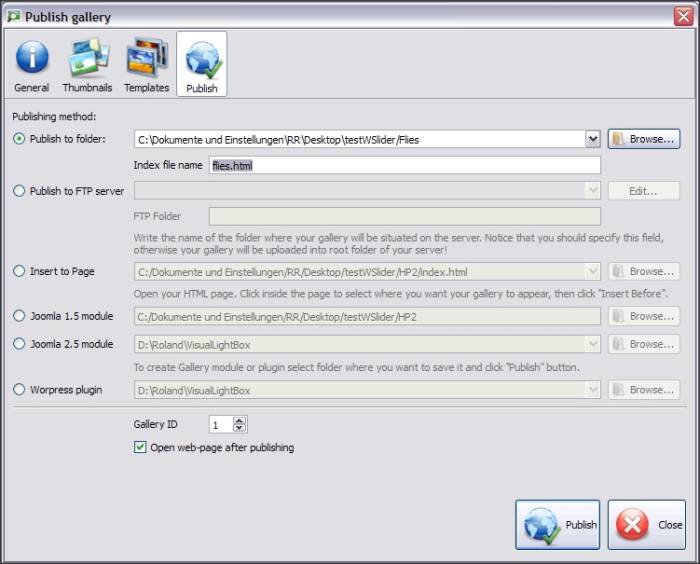
to define different names (such as “flies.html” or “sandart.html”), with
the possibility to insert different directHTML-objects, because the
corresponding directories and the references in the html-code are created with
the same names.
My tip:
If you set up your picture quality too high the amount of data is respective.
Normally a value of 90 is good for thumbnails and 50 sufficiant for the
templates.
In this example the directories  and
and  have been created.
Open one of the html-files with an editor
“WordPad-MFC” or similar. There you see the following: (okay, its not
colored)
<!DOCTYPE html PUBLIC "-//W3C//DTD XHTML 1.0
Transitional//EN"
"http://www.w3.org/TR/xhtml1/DTD/xhtml1-transitional.dtd">
<html xmlns="http://www.w3.org/1999/xhtml"
lang="en" xml:lang="en">
<head>
<title>Flies
generated by VisualLightBox.com</title>
<meta
http-equiv="content-type" content="text/html;charset=utf-8"
/>
<meta
name="keywords" content="Flies, VisualLightBox, LightBox, Photo Gallery,
gallery generator, gallery template" />
<meta
name="description" content="Flies created with VisualLightBox, a
free wizard program that helps you easily generate beautiful Lightbox-style web
photo galleries" />
<!-- Start VisualLightBox.com HEAD
section -->
<link rel="stylesheet"
href="Flies_files/vlb_files1/vlightbox1.css"
type="text/css" />
<link
rel="stylesheet"
href="Flies_files/vlb_files1/visuallightbox.css"
type="text/css" media="screen" />
<script
src="Flies_files/vlb_engine/jquery.min.js"
type="text/javascript"></script>
<script
src="Flies_files/vlb_engine/visuallightbox.js"
type="text/javascript"></script>
<!-- End VisualLightBox.com HEAD section
-->
</head>
<body
bgcolor="#ffffb1">
<!-- Start VisualLightBox.com BODY section
id=1 -->
<div id="vlightbox1">
<a
class="vlightbox1"
href="Flies_files/vlb_images1/fliegen_1.jpg" title="Fliegen
(1)"><img src="Flies_files/vlb_thumbnails1/fliegen_1.jpg"
alt="Fliegen (1)"/></a>
<a class="vlightbox1"
href="Flies_files/vlb_images1/fliegen_2.jpg" title="Fliegen
(2)"><img src="Flies_files/vlb_thumbnails1/fliegen_2.jpg"
alt="Fliegen (2)"/></a>
<a class="vlightbox1"
href="Flies_files/vlb_images1/fliegen_3.jpg" title="Fliegen
(3)"><img src="Flies_files/vlb_thumbnails1/fliegen_3.jpg"
alt="Fliegen (3)"/></a>
<a class="vlightbox1"
href="Flies_files/vlb_images1/fliegen_4.jpg" title="Fliegen
(4)"><img src="Flies_files/vlb_thumbnails1/fliegen_4.jpg"
alt="Fliegen (4)"/></a>
<a class="vlightbox1" href="Flies_files/vlb_images1/fliegen_5.jpg" title="Fliegen (5)"><img src="Flies_files/vlb_thumbnails1/fliegen_5.jpg" alt="Fliegen (5)"/></a>
<a class="vlightbox1"
href="Flies_files/vlb_images1/fliegen_6.jpg" title="Fliegen
(6)"><img src="Flies_files/vlb_thumbnails1/fliegen_6.jpg"
alt="Fliegen (6)"/></a>
<a class="vlightbox1"
href="Flies_files/vlb_images1/fliegen_7.jpg" title="Fliegen
(7)"><img src="Flies_files/vlb_thumbnails1/fliegen_7.jpg"
alt="Fliegen (7)"/></a>
<a class="vlightbox1"
href="Flies_files/vlb_images1/fliegen_8.jpg" title="Fliegen
(8)"><img src="Flies_files/vlb_thumbnails1/fliegen_8.jpg"
alt="Fliegen (8)"/></a>
<a class="vlightbox1"
href="Flies_files/vlb_images1/fliegen_9.jpg" title="Fliegen
(9)"><img src="Flies_files/vlb_thumbnails1/fliegen_9.jpg"
alt="Fliegen (9)"/></a>
<a class="vlightbox1" href="Flies_files/vlb_images1/fliegen_10.jpg"
title="Fliegen (10)"><img
src="Flies_files/vlb_thumbnails1/fliegen_10.jpg" alt="Fliegen
(10)"/></a>
<a class="vlb"
href="http://visuallightbox.com">javascript slideshow code by
VisualLightBox.com v5.4</a>
</div>
<script
src="Flies_files/vlb_engine/vlbdata1.js"
type="text/javascript"></script>
<!-- End VisualLightBox.com BODY section
-->
</body>
</html>
</body>
</html>
Now the red
colored code-snippets (easy to find between the blue colored lines) have to be copied into a new
text-file and stored as “directHTML-code1” in your project directory, for
example. This has to be done with every new show since these snippets are
particular for this one show.
<!-- Start VisualLightBox.com HEAD
section -->
<link rel="stylesheet"
href="Flies_files/vlb_files1/vlightbox1.css"
type="text/css" />
<link
rel="stylesheet"
href="Flies_files/vlb_files1/visuallightbox.css"
type="text/css" media="screen" />
<script
src="Flies_files/vlb_engine/jquery.min.js" type="text/javascript"></script>
<script
src="Flies_files/vlb_engine/visuallightbox.js"
type="text/javascript"></script>
<!--
End VisualLightBox.com HEAD section -->
<!-- Start
VisualLightBox.com BODY section id=1 -->
<div
id="vlightbox1">
<a
class="vlightbox1"
href="Flies_files/vlb_images1/fliegen_1.jpg" title="Fliegen
(1)"><img src="Flies_files/vlb_thumbnails1/fliegen_1.jpg"
alt="Fliegen (1)"/></a>
<a class="vlightbox1"
href="Flies_files/vlb_images1/fliegen_2.jpg" title="Fliegen
(2)"><img src="Flies_files/vlb_thumbnails1/fliegen_2.jpg"
alt="Fliegen (2)"/></a>
<a class="vlightbox1"
href="Flies_files/vlb_images1/fliegen_3.jpg" title="Fliegen
(3)"><img src="Flies_files/vlb_thumbnails1/fliegen_3.jpg"
alt="Fliegen (3)"/></a>
<a class="vlightbox1"
href="Flies_files/vlb_images1/fliegen_4.jpg" title="Fliegen
(4)"><img src="Flies_files/vlb_thumbnails1/fliegen_4.jpg"
alt="Fliegen (4)"/></a>
<a class="vlightbox1"
href="Flies_files/vlb_images1/fliegen_5.jpg" title="Fliegen
(5)"><img src="Flies_files/vlb_thumbnails1/fliegen_5.jpg"
alt="Fliegen (5)"/></a>
<a class="vlightbox1"
href="Flies_files/vlb_images1/fliegen_6.jpg" title="Fliegen
(6)"><img src="Flies_files/vlb_thumbnails1/fliegen_6.jpg"
alt="Fliegen (6)"/></a>
<a class="vlightbox1"
href="Flies_files/vlb_images1/fliegen_7.jpg" title="Fliegen
(7)"><img src="Flies_files/vlb_thumbnails1/fliegen_7.jpg"
alt="Fliegen (7)"/></a>
<a class="vlightbox1"
href="Flies_files/vlb_images1/fliegen_8.jpg" title="Fliegen
(8)"><img src="Flies_files/vlb_thumbnails1/fliegen_8.jpg"
alt="Fliegen (8)"/></a>
<a class="vlightbox1"
href="Flies_files/vlb_images1/fliegen_9.jpg" title="Fliegen
(9)"><img src="Flies_files/vlb_thumbnails1/fliegen_9.jpg"
alt="Fliegen (9)"/></a>
<a class="vlightbox1"
href="Flies_files/vlb_images1/fliegen_10.jpg" title="Fliegen
(10)"><img
src="Flies_files/vlb_thumbnails1/fliegen_10.jpg" alt="Fliegen
(10)"/></a>
<a class="vlb"
href="http://visuallightbox.com">javascript slideshow code by
VisualLightBox.com v5.4</a>
</div>
<script
src="Flies_files/vlb_engine/vlbdata1.js"
type="text/javascript"></script>
<!--
End VisualLightBox.com BODY section -->
Now open a new or an
existing dfm-document and choose the page in which you want the lightbox-show
to appear. Embed a page-object of the desired size and insert a directHTML-object
which again has to be set to the appropriate size in order to fit “your”
thumbnail configuration set while creating the standalone lightbox-show. If the
directHTML object exceeds the size of its displaying page-object a vertical
scrollbar is generated. (if you’re not defining this size also a horizontal
scrollbar will show up and that’s kind of annoying...) In its HTML-Tab
insert the code-snippets from the previous step.
If necessary repeat this for another show.
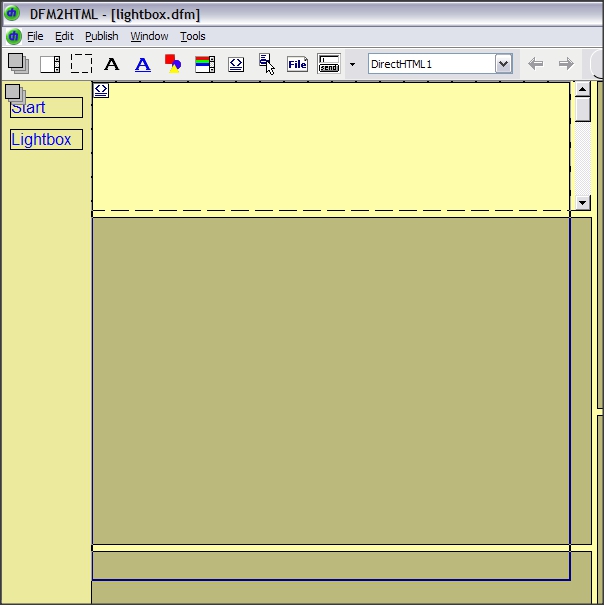
The blue frame shows the
embedded directHTML-object.
(Always keep in mind that „liquid“ main-pages which
belong to a page-control-object will not generate scrollbars and another
“child”-page has to be inserted in order to achieve scrolling)
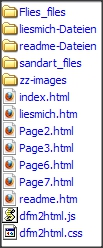
Subsequently
all directories holding the data for the lightboxes – here “Flies_files” and
“sandart_files” – have to be copied into the websites’ directory as shown here.
In rare
cases it can happen that errors appear in displaying the homepage when other
scripts have been embedded too. In this case you have to make a decision of
what is of more importance. But, as mentioned above, there’s always the
possibility of using i-frames....